Download the
Paisabazaar app Today!
Paisabazaar app Today!
Get instant access to loans, credit cards, and financial tools — all in one place

Win Assured Cashback

Our Advisors are available 7 days a week, 9:30 am - 6:30 pm to assist you with the best offers or help resolve any queries.


Get instant access to loans, credit cards, and financial tools — all in one place

Scan to download on


 Personal Loan
 Business Loan
 Home Loan
 Other Loans


Our Advisors are available 7 days a week, 9:30 am - 6:30 pm to assist you with the best offers or help resolve any queries.

Once an individual has enrolled for the Aadhaar card by visiting an Aadhaar enrolment centre or an Aadhaar Seva Kendra (ASK), Aadhar card download can be easily carried out online via the UIDAI website using the Aadhaar number, enrolment ID, virtual ID, etc. One can also download Aadhaar card using the DigiLocker and the mAadhaar app.
The downloaded Aadhaar card is known as e-Aadhaar and is a password-protected electronic version of your Aadhaar digitally signed by UIDAI. This e-Aadhar card is equally valid and acceptable as the physical Aadhaar card.
You can download and print e-Aadhaar card online using your Aadhaar number by simply following the below-mentioned steps:
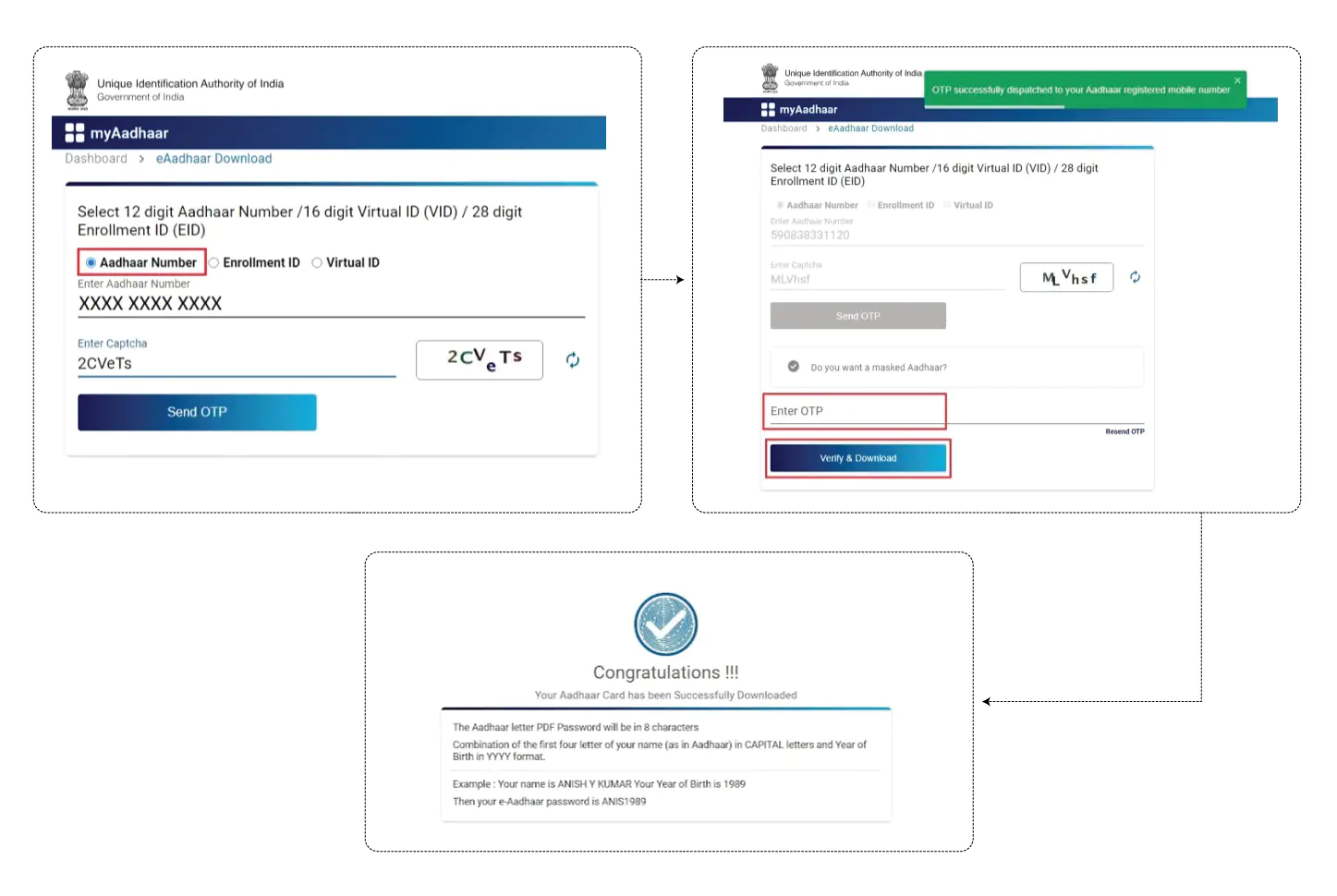
Step 1: Visit the Aadhaar official website and click on “Download Aadhaar” option listed under the My Aadhaar tab
Step 2: Select the “Aadhaar Number” option and enter the 12-digit Aadhaar number, security code and click on the “Send OTP” option to get the OTP on your registered mobile number
Step 3: Select the “Do you want a masked Aadhaar” option for the Masked Aadhaar card download
Step 4: Enter the OTP received and click on “Verify And Download”
Step 5: Upon verification, you will get a message about the successful download of Aadhaar card.
You will find a password-protected Aadhaar card PDF in your Downloads folder. To open the file, you need to enter an 8-character password.
The password will be a combination of the first 4 letters of your name (as in Aadhaar) in capital letters and year of birth in YYYY format.
Read about: How to Apply for New Aadhaar Card

A Good Credit Score ensures you manage Your Finances Well Check Now
In case you do not remember your Aadhaar number or EID, you can still download eAadhaar by entering your name and date of birth. Follow these steps for Aadhaar card download/online Aadhar card download:
Step 1: Visit https://myaadhaar.uidai.gov.in/retrieve-eid-uid
Step 2: Enter your full name and either your registered e-mail ID or mobile number and the security code
Step 3: Click the “Send OTP” button
Step 4: Enter the OTP received on your registered mobile number and click on the “Verify OTP” button
Step 5: A message will appear on the screen informing the Aadhaar number/enrolment ID is sent to your registered mobile number
Step 6: On Getting your Aadhaar enrolment number/Aadhaar number on your mobile, visit the e-Aadhaar page on the official UIDAI website
Step 7: Enter your 28-digit enrolment ID or 12-digit Aadhaar number, Security Code and click on “Send OTP”
Step 8: Enter the OTP that you receive on your registered mobile number and click on “Verify And Download” to download e Aadhar card online
Downloading Aadhaar number through the Virtual ID is the latest addition to UIDAI’s portal for Aadhar card download online. Follow the below-mentioned steps to download Aadhar card with mobile number and virtual ID or for Aadhar card free download using the virtual ID online:
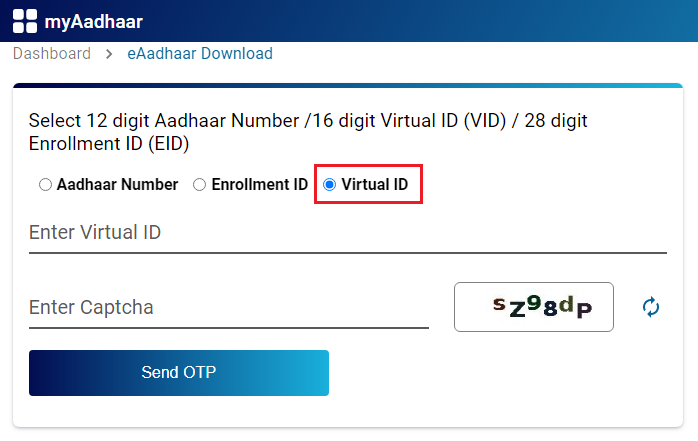
Step 1: Visit UIDAI’s online portal and click “Download Aadhaar” listed under “My Aadhaar”
Step 2: Select the VID option
Step 3: Enter your virtual ID, security code and click on “Send OTP” to generate OTP
Step 4: Enter the OTP that you receive and click on “Verify And Download” to download your e-Aadhaar card.
In case you have not got your Aadhaar card yet or have forgotten your Aadhaar number, you can still download the updated Aadhaar card by entering the Aadhaar Enrollment Number (EID). Follow the given steps below for e Aadhar card download by enrollment number:
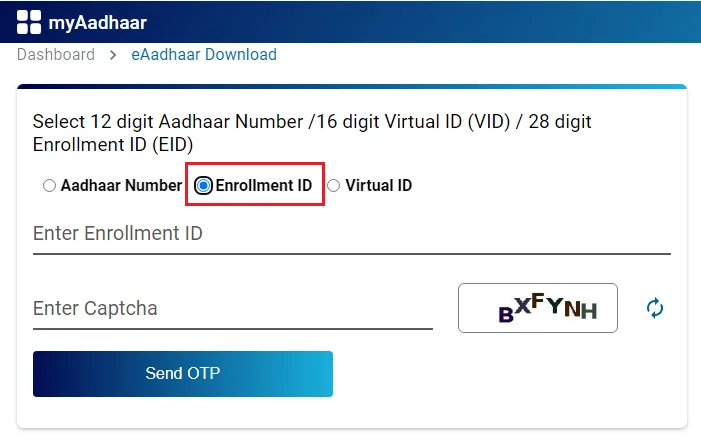
Step 1: Visit www.uidai.gov.in and click on the “Download Aadhaar” option listed under the My Aadhaar tab
Step 2: Enter your 14 digit enrollment ID, select the date and time of enrolment, type security code and click on “Send OTP”
Step 3: Enter the OTP received on your registered mobile number and click on “Verify And Download” to download an electronic copy of your Aadhaar card, that is, to download Aadhar card with enrollment number.
A Good Credit Score ensures you manage Your Finances Well Check Now
DigiLocker is a cloud-based platform for the issuance, storage, sharing and verification of documents and certificates in digital form which enables the select registered organization to provide electronic or e-copies into ‘digital lockers’ allotted to citizens.
DigiLocker has collaborated with the UIDAI to make Aadhaar available to the cardholders on linking the DigiLocker account with Aadhaar. Follow the below-mentioned steps to download Aadhaar from DigiLocker Account:
Step 1: Login to your DigiLocker account https://digilocker.gov.in/ or download the app
Step 2: Click on “Sign In” button and choose if you wish to sign in using your mobile number, username or Aadhaar
Step 3: Enter your mobile number/username/Aadhaar number along with your 6-digit security PIN to sign in
Step 4: ‘Issued Document’ page appears. Download ‘e-Aadhaar’ using “Save” icon
Read More: How to Register DigiLocker Account
Masked Aadhaar card is similar to a regular Aadhaar card. The only difference between the two variants is that your Aadhaar number is partially hidden and only last 4 digits of your Aadhaar number are visible.
It is aimed at protecting your Aadhaar number from being disclosed to others. Your masked Aadhaar card is equally valid as your regular e-Aadhaar. Follow the steps mentioned below for updated masked Aadhar card download:
Step 1: Click on the link https://myaadhaar.uidai.gov.in/
Step 2: Select Aadhaar Number, Enrolment Number or VID and enter details depending on the option that you choose (Aadhaar Number, Enrollment ID or Virtual ID)
Step 3: Enter the Security Code and click on “Send OTP”
Step 4: Select the “Do you want a Masked Aadhaar?“ option
Step 5: Enter the OTP and click on “Verify And Download” to download masked Aadhaar card PDF file.
Read More: Apply for Personal Loan Online
Without the registered mobile number, you cannot get your Aadhaar online. Here is a step-by-step guide on how to download Aadhar card without mobile numbers:
Step 1: Visit the nearest Aadhaar centre with your Aadhaar number
Step 2: Provide the required biometric details verification like thumb verification, iris scan, etc.
Step 3: Also carry other identity proof like a PAN and identity card
Step 4: The person concerned at the centre will give a printout of the Aadhaar card. A normal colour print-out on A4 sheet will cost Rs. 30 (inclduding GST), while the PVC version will cost Rs. 50.
To download eAadhar card via Umang app, applicants need to follow the simple process mentioned below:
Step 1: Download and open the Umang App
Step 2: Click on “My Aadhaar” under ‘All Services’ tab
Step 3: Click on “Download Aadhaar” listed under Aadhaar Download And Verification Services
Step 4: Enter your Aadhaar number, captcha code that you see on your screen and click on “Login with OTP”
Step 5: Enter the OTP received on your registered mobile number and click on “Login”
Step 6: After verification, your Aadhaar card will be displayed
Step 7: You can download an electronic copy of your Aadhaar by clicking on the download icon. You can also choose if you want to avail a masked Aadhaar card.
You can use the mAadhaar app to download e-Aadhaar and access your Aadhaar card anytime. However, your mobile number must be registered with UIDAI to avail the UIDAI Aadhar card download service:
Step 1: Install and login to the mAadhaar app
Step 2: Click on “Download Aadhaar” listed under Get Aadhaar
Step 3: Select if you want a Regular Aadhaar or Masked Aadhaar
Step 4: Choose in case you want to use your Aadhaar number, virtual ID (VID) or enrolment ID to download your Aadhaar
Step 5: Enter your Aadhaar number, virtual ID (VID) or enrolment ID, security code and click on “Request OTP”
Step 6: Enter the OTP that you receive on your Aadhaar-linked mobile number and click on “Verify”
Step 7: Click on “Open” to download an E-copy of your Aadhaar in PDF format.
The password to view your Aadhaar is of 8 characters, which is, the first 4 letters of your name in capital letters and your year of birth in YYYY format.
Consumer ExperienceHow long will it take to download my Aadhaar card online after I have made an update? I had updated my mobile number in my Aadhaar card. Once the number was updated, I could easily download my e-Aadhaar online via the UIDAI website within a few minutes. I just had to visit the e Aadhaar card download page and enter the required details to get my Aadhaar card PDF. The entire process was very simple and hassle-free. -Akshita Mehta |
If you want to get your Aadhaar on mobile, you need to follow the below-mentioned steps:
Step 1: Visit the official website of UIDAI https://myaadhaar.uidai.gov.in/retrieve-eid-uid
Step 2: Select what you want to retrieve – Enrolment ID or Aadhaar Number
Step 3: Enter your name, registered mobile number or email ID and mention the security code
Step 4: Now click the “Send OTP” button to process further
Step 5: You will receive the 6-digit OTP on your registered number
Step 6: Enter the “OTP” and click the “Submit” button
Step 7: You will receive the Aadhaar number on your registered mobile number as a text message
Read More: Best Business Loan Offers Online
After you download Aadhar card PDF from UIDAI’s website, you can print your Aadhaar card online. Given below is a step-by-step guide on how to take e-Aadhaar card print after downloading it:
Step 1: The e-Aadhaar that you download is in PDF format. You can open it using any PDF reader like Adobe Acrobat
Step 2: You will have to enter the 8-digit password to open your e-Aadhaar letter
Step 3: Once the file is opened, choose the ‘Print’ option, specify the number of copies and click on ‘Print’
Moreover, UIDAI has now authorized CSC Aadhaar Print as one of the options for printing Aadhaar Card at prescribed fees.
Note: The password consists of first four letters of your name in capital letters and your year of birth in YYYY format. For example, if your name is Ajay Sharma and your date of birth is 12/4/1995, your password will be ‘AJAY1995’.
Read About: How To Check Aadhaar Update Status
UIDAI provides the option to download updated Aadhar card online by using various biometric devices that are used to capture the biometric data i.e. Aadhaar card download by fingerprint software for pc, Aadhaar Card download by face, etc. to replace the need for physical ID and to ensure security of data of the applicants.
Get FREE Credit Score from Multiple Credit Bureaus with monthly updates Check Now
Ans. Yes, you can download your Aadhaar card even if your mobile number is not registered with UIDAI.
Ans. This is the latest option for the citizens to mask their Aadhaar cards in downloaded e-Aadhaar in which the first 8 digits are replaced with characters like ‘XXXX-XXXX’ and only shows the last four digits of the Aadhaar number.
Ans. e-Aadhaar card is an electronic or digital version of your Aadhaar card and has the same validity like a physical Aadhaar card.
Ans. In case you have forgotten your Aadhaar number, you can download your e-Aadhaar card using Enrolment ID and Virtual ID.
Ans. For Aadhaar pdf download, you can visit the official website of UIDAI i.e. https://uidai.gov.in/. The Aadhar download online facility is available 24×7 and 365 days a year.
Ans. Yes, Umang APP is compatible with both IOS and Android devices for downloading Aadhaar Cards.
Read more: Aadhar Card Loan
Ans. Yes, Aadhaar Card and e-Aadhaar card are equally valid. Aadhaar Card is sent to the applicants through the post from UIDAI whereas e-Aadhaar applicants have to download it through UIDAI’s website.
Ans. Once UID download (Aadhaar Card) is done, it is valid for the entire life. You can avail the e Aadhar download facility multiple times without any charges.
Ans. You can print Aadhar Card after downloading it by entering the 8-digit password.
Ans. UIDAI’s “Order Aadhaar PVC Card” service for the citizens enables citizens to raise a request for a PVC Aadhaar Card online in case their Aadhaar card is misplaced or lost by paying nominal charges. This service is also available for the applicants who have not registered their mobile numbers via Non-Registered/Alternate Mobile number.
Ans. An applicant has to pay a charge of Rs. 50/- (inclusive of GST and speed post charges) for “Order Aadhaar PVC Card”.
Ans. The request for “Order Aadhaar PVC Card” can be done through the official website of UIDAI either via Aadhaar Number (UID), Verification Identification Number (VID) or Enrollment ID.
This service is available for both with registered mobile number (where OTP/TOTP will be sent on the registered mobile number) and non-registered or alternate mobile number (where OTP will be sent on non-registered or alternate mobile number).
Ans. The request can be raised using registered mobile number by either entering the 16-digit VID or 12-digit UID on the official website of UIDAI. An OTP will be sent on the registered mobile number upon clicking ‘Request OTP’ and the details of Aadhaar will appear on the screen.
Ans. No. The Aadhaar PVC card will be delivered to the address mentioned on the card. There is no provision to get the card delivered to any address other than that mentioned in the Aadhaar card.
If you reside at a different address, you can use the Aadhar card download pdf service and print it.
Ans. An applicant can receive their PVC Card within 5 working days (excluding the date of request).
Read more: Check Your Credit Score Free Online
Ans. m-Aadhaar app can be downloaded from the Google Play Store or App Store.
Ans. Yes, you can download Aadhar card online even without the mobile number registered with Aadhaar.
Ans. Yes, once your request for an update is approved, you can download your Aadhaar letter online by clicking ‘Download Aadhaar’ on the official website of UIDAI.
Ans. Yes, the online downloaded Aadhaar (e-Aadhaar) letter has the same validity as that of the original. UIDAI has provided the e Aadhar download facility to enable people in availing services uninterruptedly.
Yes, anybody whose Aadhaar card is generated is eligible for e Aadhar card download online.
Read more: Documents Required for Aadhaar Card Enrolment and Update
Ans. Aadhaar card download password is the password to open up your e-Aadhaar card PDF file. It consists of first four letters of your name in capital letters and your year of birth in YYYY format.
Ans. No, you can download your Aadhaar card as many times you want without paying any charges.
Ans. At present, there is no provision to download your Aadhaar card via WhatsApp. However, the UPI payment can be done for Aadhar download using WhatsApp.
Ans. You can download masked Aadhaar card online via the UIDAI website, UMANG app or mAadhaar app. Simply tick mark the masked Aadhaar option when you download your e-Aadhaar.
Ans. You can download Baal Aadhaar card in the same way like an Aadhaar card for adults via the UIDAI website, UMANG app or mAadhaar app.
Ans. No, UIDAI does not charge any fee if you download Aadhaar card online. You are also not charged any fee for mask Aadhaar card download.
Ans. The supporting software needed to open e Aadhaar pdf is ‘Adobe Reader’.
Your Credit Score Is Now Absolutely Free Check Now